Host a UI with Apps
Deploy a service that serves its own user interface and make it available as an embedded app in the Arango Platform web interface
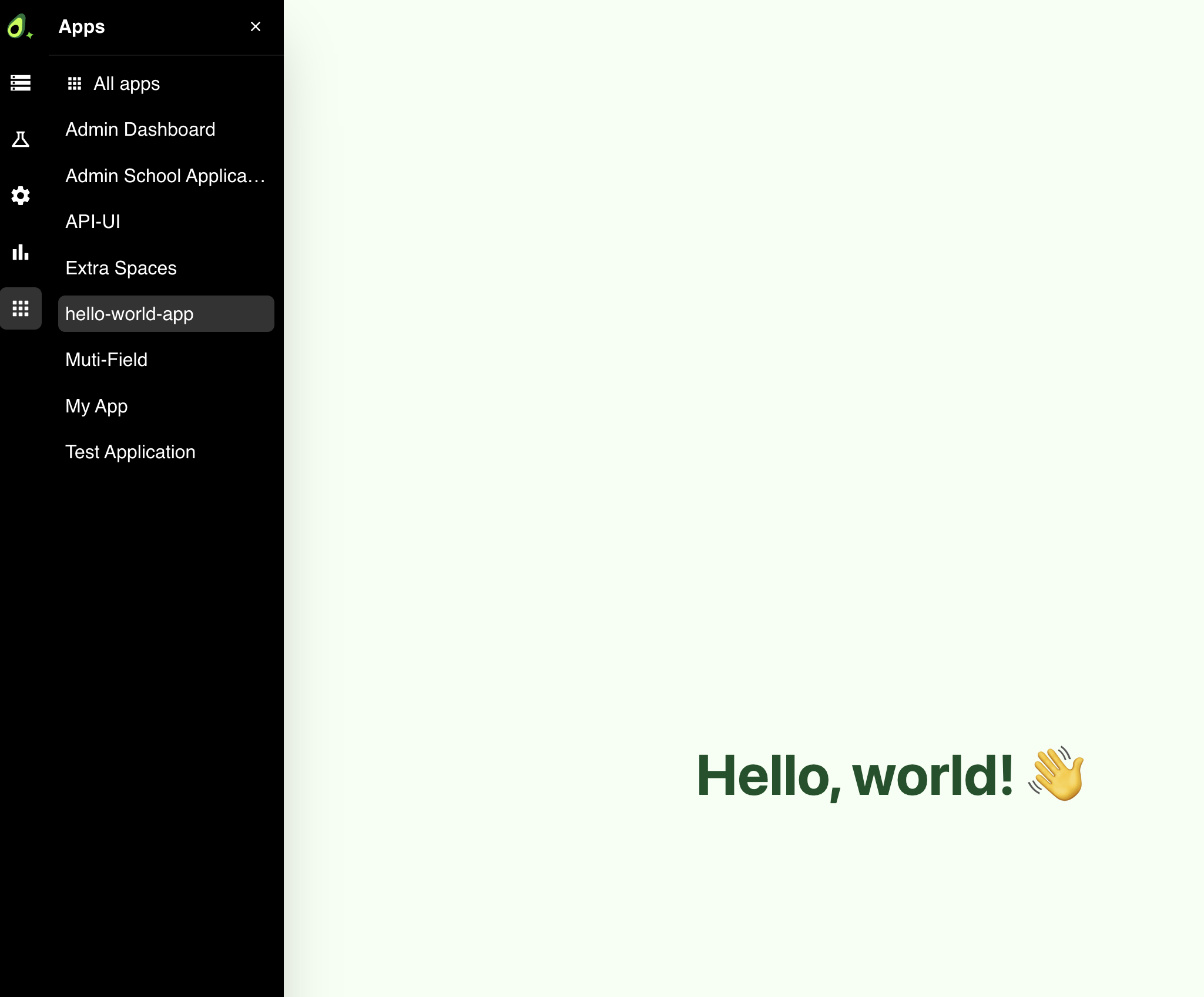
In addition to running headless services and APIs, the Container Manager can host services that ship their own user interface. A service registered this way becomes an App: it appears in the platform’s Apps catalog and its UI is rendered embedded in the Arango Platform web interface.
Apps are useful for surfacing custom dashboards, admin panels, and interactive tools next to your data. This is also where you may find prototypes and proof-of-concept demos, when enabled for you by ArangoDB.
An App is deployed exactly like any other code package or Docker image through the Container Manager. The only differences are that you register the service as an App and that your service serves a UI.
Requirements
A service is eligible to be an App as long as it returns a UI (HTML) at the
root path (/): instead of (or in addition to) serving an API, the service
responds to requests at / with an HTML page.
Serving HTML at / is what makes a service eligible, but it is not the only
requirement. To actually register the service as an App, you also provide the
has_ui, display_name, and description metadata at deploy time (see
Register a service as an App).
This applies to both deployment methods:
- Bring Your Own Code: Your code package serves HTML at
/. See Package Your Code. - Bring Your Own Container: Your Docker image exposes an HTTP server
(default port
8000) that serves HTML at/.
The platform routes the embedded app’s traffic to your service’s root path, so
no additional configuration is required beyond serving the page at /.
/) of your service.
To keep assets and API calls working under the app’s URL path, serve the UI at
/ and reference any assets and API endpoints using relative paths.Register a service as an App
You register a service as an App at deploy time in the Container Manager web interface:
Open the Container Manager (Control Panel → Container Manager).
Fill in the Deploy new Service panel for your service:
- On the Packages tab, upload your
.tar.gzcode package and set the file name, version, and base image. - On the Containers tab, enter your Docker image URL.
For the full list of fields, see Deploy Service from a Code Package or Deploy Service from a Docker Image.
- On the Packages tab, upload your
Enable Register as App.
Enter a Display name and a Description. These identify your app in the Apps catalog.
Click Deploy Service (or Deploy Container).
Once deployed, the service is listed with an Apps badge in the Packages or Containers list, indicating that it is available in the Apps catalog.
To register a service as an App programmatically, see Deploy via API.
Open an App from the catalog
Once your App is running, you can open it from the Apps catalog:
- In the Arango Platform web interface, open the Apps catalog.
- Search for your app by its Display name.
- Select the app to open it. Its UI is rendered embedded in the web interface.